
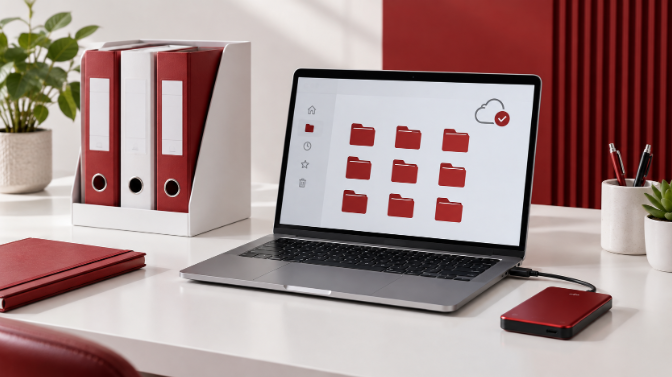
Organising business files and backups makes it easier to find the right version and recover work when something goes wrong. Begin with the files your business depends on, then decide where they belong, who can access them and how they can be restored. Test the arrangement with one active project before expanding it.
A useful file system makes it clear where work belongs, who can access it and how the business can recover it. Begin with one active project, establish a simple method and extend it across the team once it works.
Step 1 – Identify the files the business depends on
List the materials that would be difficult or costly to recreate. These may include customer records, approved designs, original footage, financial documents, website backups and operating instructions.
Identify their current locations and owners. A business may have a cloud account while important work still sits in an employee’s Downloads folder. Check the actual saving process rather than assuming that every file is covered by an existing system.
Step 2 – Choose a consistent folder structure
Create a small number of main folders based on how the business works. For example, Clients, Finance, Marketing, Operations and Archive may be enough. Within a client folder, separate the brief, working files, review copies and approved delivery.
Avoid building a folder structure so detailed that people cannot remember where to save anything. Write a short explanation of what belongs in each main folder. Test it with a team member who did not design the system.
Step 3 – Name files so people can recognise them
Use a consistent combination of date, project and document type. A name such as 2026-09-09-Acme-Website-Brief-v01 gives more context than Document7. Use a date format that sorts consistently and agree how revisions are labelled.
Keep the approved copy easy to identify. Where your tool supports version history, use that feature alongside a clear review process. Avoid creating multiple competing “approved” copies across folders and messaging apps.
Step 4 – Give people the access they need
Separate internal working material from files intended for customers. Grant editing rights to people who need to change the work and viewing or commenting rights where those are sufficient.
Google Drive, for example, provides Viewer, Commenter and Editor roles with different permissions. Review the current sharing settings rather than assuming that sending a link keeps the file private. See Google Drive’s sharing guidance.
Use named access for sensitive work where appropriate. Review access when a project ends or a team member leaves, and confirm that the business retains control of important files.
Step 5 – Plan recovery separately from daily file access
Check how your storage service handles accidental deletion, earlier versions and account loss. Synchronisation can copy changes between locations, including unwanted changes. Understand the recovery limits of your exact service before treating it as the whole backup plan.
The UK’s National Cyber Security Centre recommends keeping recoverable copies of important business data and checking how to restore them. It also advises disconnecting external backup devices when they are not in use. See its guide to backing up business data.
Choose a backup method that fits the size and sensitivity of your files. A media business with large original footage may need a different arrangement from a consultant working mainly with documents.
Step 6 – Set a frequency and an owner
Decide how much recent work you could realistically recreate. If losing a day’s work would cause serious disruption, a weekly copy alone is unlikely to meet that need. Set the schedule around the business impact and confirm which folders it covers.
Assign someone to check that backups finish successfully. Keep recovery instructions and required access details securely available to authorised people. A notification that a backup ran is useful, but it should not be the only evidence that recovery will work.
Step 7 – Restore a sample file
Choose a non-sensitive test file and restore it into a separate test location. Open it and confirm that the content is usable. Record where it came from, how long recovery took and any missing permissions or instructions.
Repeat the exercise after major changes to the storage setup. The purpose is to discover recovery problems while the original files are still available.
Start with one active client folder today. Give it a clear structure, check its permissions and confirm a working recovery route. Once the team can follow the method without explanation, apply the same principles to the rest of the business.
Review business files and backups with a recovery test
Write a small test record containing the file selected, the backup location, the version restored, the recovery time and whether the file opened correctly. Use a separate test folder so the exercise cannot overwrite current work. Check that the person assigned to recovery has the access and instructions needed.
Repeat the check after a storage migration or a major change in backup settings. Business files and backups can appear organised while an essential folder has been excluded from the copying process. A successful restoration provides better evidence of recoverability than a folder name or an unchecked completion notification.
Frequently asked questions
Is cloud synchronisation the same as a backup
Not automatically. Synchronisation can reproduce deletion or unwanted changes across locations. Review the service’s version history, retention and recovery behaviour, and plan for account loss as well. Decide whether additional independent copies are needed for the importance of the files.
How often should I review business files and backups
Choose a schedule around how much work you could afford to recreate. Review permissions when staff or projects change, check backup completion routinely and test recovery after important setup changes. Your business’s tolerance for disruption should guide the frequency.
Should old project files be deleted immediately
Use an agreed retention and archiving approach that reflects business needs and applicable obligations. Separate active work from archived material and review access. Do not delete files just to make a folder look tidy before confirming whether the business still needs them.
Related guides
Read How to Secure Small Business Accounts in One Afternoon.
Read How to Create Standard Operating Procedures with AI.
Take the next step with Coded TV
Need help with organising your business files and backup workflow? Explore Coded TV services, then tell us your goal, current challenge and preferred timeline so we can discuss a suitable next step.
Email: info@codedtv.com.
WhatsApp: 09057273900 (international: +2349057273900).